[ DEPLOYMENT ]
“Already exists” after clicking Deploy
The first request may have succeeded even though a later request produced a failure popup.
We observed duplicate create requests from the Console during pre-release testing, including a run with one recorded Deploy activation. The message does not establish that you double-clicked. A deployment name already in use can also cause this error.
- Close the dialog. A failed entry may also remain in the notifications bell for the rejected duplicate request; inspect the deployment itself before treating that entry as an installation failure. Open Solution deployments in the same project and locate the exact name in the error.
- If it is Deploying, open it and follow its operation/logs. Wait; do not create another deployment.
- If it is Deployed, follow the first-request steps; they wait for a TPU model that is still loading. Do not delete a successful installation just to clear the popup.
- If it is Failed, read the apply error. A later quota, capacity or permission failure is separate from the duplicate popup and needs its own remedy.
- If the name belongs to another installation, choose a distinct name. If reusing a name you deleted, first confirm deletion finished. If the named deployment is absent after refreshing, save the timestamp/error and contact support before repeated retries.
Submitting once reduces accidental duplicates, but is not a guarantee against Console retries. This guide provides a recovery path; it does not claim that Google's duplicate-request behavior has been fixed.
[ ACCESS ]
The listing, account or permissions are missing
- Confirm the Google account and project in the Console. Clear Marketplace search filters and search for Prio Model Serving Platform by Renice AI, Inc., or open the listing directly.
- If Google asks you to verify your identity, complete sign-in and reopen the listing.
- If the product is unavailable or purchasing is blocked, ask your administrator to check project billing, Marketplace permissions and any organization-managed product approval. If those checks pass but the listing is still unavailable, contact Renice support with the URL and exact error.
- If the service-account picker is empty, ask your administrator to check that the intended account exists and has the roles listed by the form. Your user needs permission to use that account, including
iam.serviceAccounts.actAs. - For an apply failure, use View Logs to find the exact denied permission, resource and identity. Grant only the required permission to the appropriate identity; do not add Owner or Editor as a blanket fix.
- Cloud Resource Manager API has not been used in project … or it is disabled (
accessNotConfigured, reported on a Project Service such aslogging.googleapis.com): the API is not enabled on a new project. Enable it withgcloud services enable cloudresourcemanager.googleapis.com --project=YOUR_PROJECT, wait a minute, then redeploy the failed deployment from Solution deployments or delete it and deploy again. - Shared VPC, shared reservations, private cluster access and organization policies can need separate administrator setup. Refresh the picker or retry the failed operation after that setup is complete.
Provisioning access, Kubernetes access and API-caller authentication are separate. See Google's Infrastructure Manager service-account setup for the deployment identity.
[ CONFIGURATION ]
A dependent field is missing or unexpected
- Select the intended model, cluster mode and authentication mode explicitly. Expand More or Advanced settings where shown.
- If the Console does not reveal the expected fields, change that selector once and return to the intended value. Recheck every dependent value; switching modes can clear inputs.
- For namespace creation or reuse, enter Application namespace name. It is a text field, not a namespace picker.
- For a generated bearer credential, Secret name can be blank and Secret data key is
api-key. Neither field accepts the token itself. - If fields still disagree with this guide, record the release version and share a screenshot without credentials. Do not submit with unknown or stale settings.
Google's command-line tab may remain visible; follow Click to Deploy on GKE for this walkthrough.
[ CLUSTER COMPATIBILITY ]
The cluster or reservation zone is rejected
- cluster_name must be a valid GKE cluster name of at most 40 characters: the New Cluster name field does not check the length. Enter 2–40 lowercase letters, digits or hyphens, starting with a letter and ending with a letter or digit, then deploy again.
- Check the installer’s supported modes: Qwen uses Standard; GPT-OSS and DeepSeek also support Autopilot.
- On-demand and Spot need no zone. For a specific reservation, the Reservation zone must be the reservation's live zone in the regional cluster's region, or exactly match an existing zonal cluster; the error lists the region's live zones when the value is not one of them. Installer revisions before this one asked every TPU deployment for a zone in the cluster region.
- Ask the administrator to check the cluster requirement named in the error: networking/network-policy enforcement, Workload Identity, Shielded Nodes, GKE version, or available system capacity. Every existing Standard cluster, including a CPU-only installation, needs at least one Ready, schedulable, untainted amd64 non-TPU system node. Scale that pool above zero before deploying.
- The CPU installer creates a dedicated N2 model pool on a compatible existing Standard cluster. You do not need to rename an existing pool to match the model. Account for the new pool's compute quota and cost.
- If the existing cluster cannot meet the requirements, use New Cluster or another approved compatible cluster. The cluster picker is not a hardware-compatibility filter.
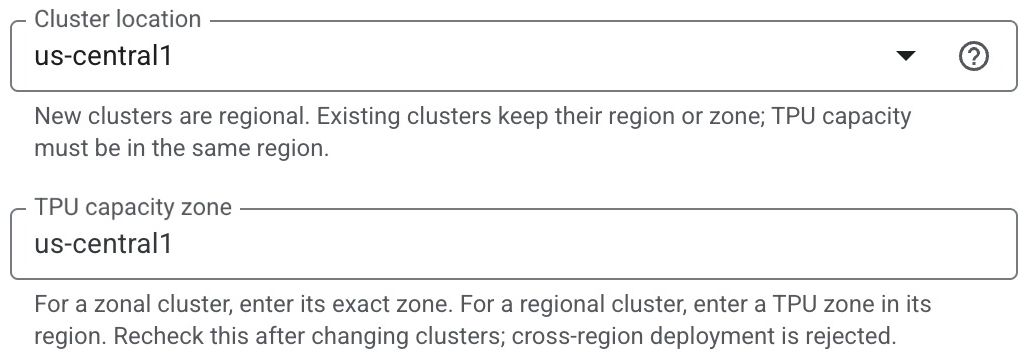
us-central1 is a region, not a full zone. A reservation zone is a full zone in the cluster region, such as us-central1-b.[ COMPUTE ]
“Not enough resources” or quota exceeded
Physical stock and quota are different. A stockout can affect the CPU infrastructure used to create a GKE cluster as well as the model's CPU or TPU capacity. An error attached to cluster creation does not identify which underlying allocation failed. Use the GKE operation details to distinguish cluster provisioning from a node-pool allocation.
- Open the failed operation's logs. Record the exact resource, region/zone, machine type if provided, and error code.
- Quota exceeded: ask the administrator to request the relevant quota or release unused allocations. A larger quota does not guarantee available machines.
- No effective CT6E (or CT5P) on-demand (or Spot) TPU quota of at least N chip(s) was found in REGION: the installer checks Compute Engine TPU quota before it creates the cluster. Request it under IAM & Admin → Quotas for the cluster region. On-demand:
tpu_family:CT6Efor GPT-OSS (8 chips),TPU v5p chipsfor DeepSeek (4 chips). Spot:Preemptible TPU slices v6efor GPT-OSS,Preemptible TPU v5p chipsfor DeepSeek. A reservation needs no quota. TPU quota is regional, so every zone in the region shares it. - Insufficient physical capacity: retry later or choose another supported location. For an existing cluster, a TPU zone must remain in its region; using another region requires a different or new cluster.
- Reservation: check delivery/readiness, remaining chips, exact zone/type/topology, owner project, name and sharing permissions. A reservation for another TPU generation cannot satisfy the selected profile.
- Spot: Spot TPUs can be unavailable while on-demand stock exists, and Google can reclaim them at any time. If the model pod stays Pending on Spot, wait or deploy again with On-demand capacity.
- Before starting a replacement deployment, inspect the failed one and clean up resources it created. Do not accumulate parallel retries with paid resources.
Keep the published model profile intact. Changing its machine type or topology to work around stock may make the model unsupported.
[ READINESS ]
The deployment stays Deploying, or the model is not ready
- A CPU deployment stays Deploying until its model API is ready, and fails if its readiness deadline passes. A TPU deployment shows Deployed once its API is ready or after about 45 minutes, so its model can still be loading or waiting for capacity; checkpoint download, restore and compilation can take a long time, especially for DeepSeek.
- Open View Logs on the deployment, or View model logs in Outputs. Connect kubectl, then use the commands below with your namespace.
- Pending: inspect events for capacity/quota, scheduling, PVC/storage or image-pull errors.
- Init / loading: check whether download, verification and restore are advancing. Existing networks need DNS, outbound HTTPS and adequate NAT capacity.
- Repeated restarts or a verification error: capture the failing container's logs and contact support. Do not disable digest checks or replace checkpoint URLs to bypass the failure.
kubectl -n YOUR_NAMESPACE get pods
kubectl -n YOUR_NAMESPACE get events --sort-by=.lastTimestamp
kubectl -n YOUR_NAMESPACE describe pod YOUR_POD
kubectl -n YOUR_NAMESPACE logs YOUR_POD -c YOUR_CONTAINER --tail=100
Get the Pod and container names from the first and third commands. If a container restarted, add --previous to read its preceding attempt. A readiness timeout is a prompt to inspect progress, not proof that another Deploy click is needed.
[ NETWORK ]
kubectl or the API cannot connect
If kubectl times out or is refused
- Connect with
--dns-endpoint, as in step 10. Without it, gcloud configures the cluster's IP endpoint, which admits only Google Cloud addresses: Cloud Shell works, but a laptop times out. - For an existing cluster, ask its administrator to allow DNS access once. This keeps the cluster's other access settings:
gcloud container clusters update YOUR_CLUSTER --location=YOUR_LOCATION --project=YOUR_PROJECT --enable-dns-access- If the connection is refused with Forbidden or permission denied, check IAM and RBAC, not the network. Your account needs
container.clusters.connect, included in Kubernetes Engine Developer and Kubernetes Engine Viewer, plus Kubernetes permission for the namespace. - Organizations can restrict the DNS endpoint with VPC Service Controls. If yours does, ask the administrator for the approved network path.
See Google's control-plane access overview.
If the inference API times out
- A private
10.xendpoint is not internet-reachable. Use the tunnel from step 10 for the first call. - For direct access, use a VPC-connected client. Check its actual source range against Inference API access - trusted VPC CIDRs. An explicit list replaces the default subnet allowance.
- Check VPC routes/firewall and namespace NetworkPolicies. Clients in another namespace may require administrator-approved policy changes.
- For connected clients in another region, check Allow connected VPC clients in other regions. That option does not establish connectivity by itself.
Inference API access does not affect kubectl, and it does not create a public model API. A tunnel test does not validate the direct load-balancer path.
[ REQUESTS ]
The API returns 401, 403 or 503
- Check which operation failed: retrieving a Kubernetes Secret, minting an identity token, or the inference HTTP request. They use different permissions.
- 401: verify the selected authentication mode and bearer header. For generated/existing credentials, rerun the retrieval command. For OIDC, mint a fresh ID token for the exact audience with an email claim; do not use an OAuth access token.
- 403: for OIDC, check the admitted service-account list. For gcloud impersonation, ask for the required token-creation permission; for kubectl, check IAM/RBAC and namespace access.
- 503: check model/frontend readiness and logs. Repeated credential changes will not fix a model that is still loading.
- Bad request / unknown model: use the ID that
/v1/modelsreturns, keep the JSON valid, and stay within the release's input/output limits.
Do not turn authentication off to troubleshoot a token error. Review each supported authentication mode.
[ FIRST CALL ]
The tunnel or first request fails
- Run the tunnel and the requests in the same shell: the background tunnel and the
APP_variables live there.localhostin your laptop browser is not the Cloud Shell VM. - The tunnel takes a free local port, so another program on port 8080 does not interfere. If the commands print the tunnel log and The local tunnel did not start, fix the error in that log (often the deployment name or namespace) and rerun them.
- If requests are refused, the tunnel has stopped, for example after a Pod restart: wait for readiness and rerun the tunnel lines from step 10. Do not bind the tunnel to
0.0.0.0. - If
APP_API_KEYis empty, the Secret read failed: check the deployment name, namespace and your permission to read Secrets.
[ CLEANUP ]
Deletion fails, or resources still incur charges
Do not delete managed GKE clusters, node pools or namespaces individually as a shortcut. That can leave deployment state out of sync and dependent resources still running. Start deletion from Solution deployments and wait for the operation to finish.
- Check the Delete operation in Solution deployments. Keep its service account and permissions available until it succeeds.
- Inspect the exact dependency or permission in the deletion logs. Restore required access before retrying. Retaining/abandoning resources removes management without removing the infrastructure.
- Check deployment-owned nodes, disks, load balancers and network resources. Deleting only the application does not necessarily remove the managed cluster or its compute.
- Supplied clusters, networks, namespaces, Secrets and reservations remain customer-owned. A paid reservation can continue charging when unused; manage it separately according to its terms.
- If you deleted a deployment before it finished installing and the deletion fails on its network, GKE may have left an empty network endpoint group for the API load balancer in the deployment's own VPC,
DEPLOYMENT_NAME-vpc. List the groups in that VPC; delete only one whose size is 0, then retry the deletion from Solution deployments:gcloud compute network-endpoint-groups list --project=YOUR_PROJECT --filter="network~/DEPLOYMENT_NAME-vpcquot; gcloud compute network-endpoint-groups delete NEG_NAME --zone=NEG_ZONE --project=YOUR_PROJECT - If resources were already deleted manually, or cleanup still fails, stop further manual deletion. Share the deployment ID and deletion logs with your administrator or Renice support to reconcile the remaining resources with the deployment state. Remove leftovers only as part of that recovery, after verifying ownership and current usage.
Follow the cleanup checklist and confirm both operation completion and resource removal. Google's deployment deletion documentation explains the difference between deleting resources and abandoning them.
[ SUPPORT ]
Share a useful problem report
Contact Renice support with:
- Release/application version, model, cluster mode and region/zone.
- Deployment name, operation ID, timestamp and current status.
- The exact sanitized error, relevant events/logs and steps to reproduce.
- For connectivity: laptop, Cloud Shell or VPC client; which CIDR field you configured and which command failed.
Exclude tokens, Secret contents, customer prompts/responses and private data from screenshots or logs. Screenshots on this page are historical test examples, not active resources to reuse.
← Back to the installation guide